




Seeing “SOS” or “SOS Only” on your phone’s status bar can be unsettling, especially when you’re cut off from regular calls, texts, or data.
This alert doesn’t mean your phone is broken. It simply indicates that your device isn’t connected to your carrier’s network but can still make emergency calls.
Fortunately, resolving SOS mode is usually quick and straightforward.
In most cases, you can fix SOS mode by doing the following:
- Toggling Airplane Mode to refresh your network connection
- Force restarting your phone to clear temporary glitches
- Reinserting or checking your SIM or eSIM settings
- Resetting your phone’s network settings
- Contacting your carrier to check for account or service issues
This guide provides a step-by-step breakdown to help you restore full connectivity on both iPhone and Android devices.
What Does SOS Mode Mean on a Phone?

When your phone shows “SOS” or “SOS only” in the status bar, it means the device cannot connect to your mobile carrier’s network but can still make emergency calls.
This is a built-in safety feature on both iPhones and Android devices, designed to ensure you can reach emergency services even when normal mobile service is unavailable.
The main purpose of SOS mode is to provide emergency access in critical situations.
If your SIM card is missing, your plan is inactive, you’re outside your carrier’s coverage area, or the network is temporarily down, your phone will try to connect to any available carrier solely for emergency calls, such as 911 or local equivalents.
You’ll usually see the SOS indicator in the top-right status bar on an iPhone or within the network icon area on Android. Importantly, SOS mode doesn’t mean your phone is faulty, only that regular service isn’t currently accessible.
Why Is My Phone Stuck in SOS Mode?
Phones can get stuck in SOS mode for several reasons, but in most cases, the issue is temporary and fixable without professional repair. SOS mode simply means your device can’t access full network service and has fallen back to emergency-only connectivity.
Understanding the root cause helps you fix the problem faster and avoid unnecessary resets or service calls.
Common Reasons Your Phone Stays in SOS Mode:
- A loose, damaged, or missing SIM cardis preventing network detection
- Temporary carrier outages, maintenance, or signal disruptions
- Account suspension caused by billing or plan-related issues
- Software bugs or incomplete iOS or Android updates
- Disabled roaming while travelling outside your home network
- Internal hardware damage affecting the antenna or modem
While SOS mode can be frustrating, it doesn’t usually indicate permanent damage. Once the underlying issue, network, SIM, software, or account-related, is resolved, normal service is typically restored quickly.
How Does SOS Mode Work Across iPhone and Android Devices?
Both operating systems implement SOS mode as a built-in emergency feature, but there are some differences in how it’s presented, what triggers it, and how to fix it.
When your phone enters SOS mode, it disconnects from your standard mobile network and only allows emergency calls, such as dialing 911 in the US.
This ensures you can reach help even if you’re in an area with poor signal or facing account issues.
Here’s a comparison of how SOS mode works on iPhone vs Android:
| Feature | iPhone | Android |
| SOS Text Display | “SOS” or “SOS Only” in status bar | “Emergency Calls Only” or “SOS” |
| Emergency Call Access | Via any nearby network | Via default emergency services |
| Common Triggers | SIM, iOS bug, carrier block | Network outage, SIM, Android bugs |
| Fix Tools | iTunes/Finder, Settings | Safe Mode, Recovery, SIM tools |
On iPhones, SOS is tightly integrated into the Emergency SOS feature, allowing quick activation by pressing buttons.
It’s designed to protect users even if regular network access fails. On Android, SOS mode varies slightly by brand, but most manufacturers use the fallback emergency network when a carrier connection fails.
It’s automatic, silent, and usually triggered by system-level detection of disconnection.
How Can You Get My iPhone Out of SOS Mode?
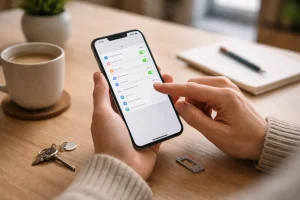
Getting stuck in SOS mode on an iPhone can be frustrating, but in most cases, it’s a temporary issue caused by minor glitches, SIM errors, or outdated settings.
By following a few practical steps, you can restore full service without needing to visit a store.
Here’s a five-step troubleshooting process I recommend:
Step 1: Toggle Airplane Mode and Restart Your iPhone
Start with the simplest fix: refreshing your iPhone’s network connection.
- Swipe down from the top-right corner of the screen to open Control Center.
- Tap the Airplane icon to enable Airplane Mode.
- Wait for 15 to 20 seconds to ensure all wireless radios (cellular, Wi-Fi, Bluetooth) are fully shut off.
- Tap the icon again to turn Airplane Mode off.
Next, perform a force restart to clear memory glitches that may prevent proper signal detection:
- Quickly press and release the Volume Up button.
- Quickly press and release the Volume Down button.
- Press and hold the Side Button until the Apple logo appears.
This sequence resets the device’s internal network chip and helps it reconnect to the mobile network.
Step 2: Remove and Reinsert the SIM Card
Your SIM card is essential for carrier registration. If it’s loose or dirty, your phone may show “SOS” or “SOS Only.”
- Turn off your iPhone completely.
- Use a SIM ejector tool or a paperclip to open the SIM tray (typically on the right side).
- Gently remove the SIM card and inspect it for:
- Scratches or discoloration on the gold contacts
- Dust or debris inside the tray
- Lightly clean the SIM card with a microfiber cloth or soft brush.
- Reinsert it firmly and ensure it lies flat in the tray.
- Push the tray back into the phone until it clicks, then power your iPhone back on.
Often, a simple reseating resolves SOS mode if the SIM was slightly misaligned.
For eSIM users:
If your iPhone uses an eSIM (common in iPhone 14 and later models in the US):
- Go to: Settings > Cellular (or Mobile Data)
- Tap on your eSIM line and make sure it’s turned on
- If it shows “No Service”, tap “Remove Cellular Plan” and re-add it using a QR code from your carrier or the carrier app
- You can also try toggling Airplane Mode on and off to refresh the eSIM registration
If your eSIM is not working or was accidentally deleted, contact your carrier to resend the activation QR code or reset the eSIM profile.
Step 3: Check and Configure Network Settings Manually
Sometimes your iPhone can’t automatically register with your carrier’s network, especially after a glitch or in areas with weak signal.
- Go to: Settings > Cellular > Network Selection
- Turn off the Automatic toggle.
- Wait as the device scans for available carriers (this may take up to 30 seconds).
- Tap your carrier’s name from the list to manually select it.
If the selection fails or doesn’t stay checked, your SIM may be deactivated, or your carrier account could be suspended. In that case, it’s best to call your carrier from another device to confirm account status.
Step 4: Reset Network Settings
If the above steps didn’t help, it’s time to reset your iPhone’s network configuration. This action removes saved Wi-Fi passwords, Bluetooth devices, and any corrupt APN (carrier) settings.
- Go to: Settings > General > Transfer or Reset iPhone > Reset
- Tap Reset Network Settings
- Enter your passcode when prompted and confirm
Your iPhone will restart and automatically reload the latest carrier settings. This step is particularly effective if SOS mode was caused by a recent iOS update or connection bug.
Step 5: Update or Restore iOS
As a final solution, you’ll want to update your iOS or fully restore the device’s firmware if all else fails.
To check for iOS updates:
- Go to: Settings > General > Software Update
- If an update is available, tap Download and Install
These updates often include modem and network improvements that directly affect connectivity and SOS mode behavior.
If no update works, restore your iPhone using a computer:
- Connect your iPhone to a Mac (Finder) or PC (iTunes)
- Select your device when it appears
- Choose Restore iPhone (do not select a backup yet)
- Let the device reinstall the latest iOS firmware
Important: Don’t restore from backup immediately. Test your phone first. If the SOS message is gone and the signal is restored, you can then restore your apps and data.
By following these five carefully structured steps, you can usually resolve iPhone SOS mode without visiting tech support. If none of these solutions work, it’s best to test with another SIM or visit a corporate carrier store to rule out hardware or account-related issues.
What Are the Best Ways to Fix SOS Mode on an Android Phone?
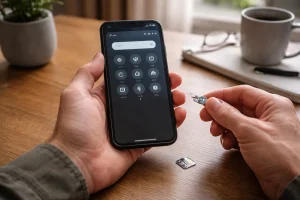
Android phones vary by manufacturer, but the core fixes for SOS mode are largely the same across devices. Follow these steps in order to troubleshoot effectively.
Restart Your Phone and Reinsert the SIM
Begin by powering off your device completely. Use the SIM eject tool to remove the SIM card. Check for dust, scratches, or a loose fit. Clean gently if needed. Reinsert the SIM, ensuring it sits firmly, and power on the phone. Often, this alone resolves SOS mode.
Toggle Airplane Mode
Swipe down from the top of your screen twice to access Quick Settings. Tap the airplane icon to enable Airplane Mode. Wait for 15 seconds before disabling it again. This refreshes your connection to the carrier network and can re-register your phone.
Reset Network Settings
If your phone still won’t connect properly, the next step is to reset your network settings. This erases all saved mobile, Wi-Fi, and Bluetooth connections, but don’t worry, it won’t delete your personal data.
Go to:
Settings > System > Reset Options > Reset Network Settings (On Samsung: Settings > General Management > Reset > Reset Network Settings)
Once confirmed, your phone will restart and rebuild all network configurations from scratch. This step is particularly useful if a recent Android update caused the issue.
Manually Select Your Carrier
Sometimes your phone can’t automatically register with the carrier. Manually selecting the network can help it connect correctly.
- Navigate to:
Settings > Network & Internet > Mobile Network > Advanced > Carrier - Disable “Choose automatically”
- Wait for the list of carriers to load, then tap your provider’s name
If it fails to register, it could point to a SIM card issue or an inactive account.
Use Recovery or Safe Mode (Advanced Steps)
If the above steps don’t work, there may be deeper system conflicts.
Option A: Wipe Cache Partition
- Power off the phone
- Hold Power + Volume Up (and Bixby for Samsung) to enter Recovery Mode
- Use volume buttons to select Wipe Cache Partition and confirm with the power button
This removes temporary modem files that may be causing conflicts.
Option B: Boot into Safe Mode
- Long-press the Power Off button
- Tap “OK” when prompted to reboot into Safe Mode
Safe Mode disables third-party apps. If SOS mode clears, an app, like a VPN or signal booster, might be the cause. Try removing recent downloads before restarting normally.
Following these five steps should help you resolve SOS mode on almost any Android phone. If you’re still stuck after trying them all, consider testing with another SIM card or contacting your carrier to check for outages or account issues.
Can Network or Carrier Issues Cause SOS Mode?
Yes, network or carrier problems can absolutely force your phone into SOS mode even when the device itself is working perfectly.
This is one of the most common and often overlooked reasons SOS mode appears. If your phone can’t register on your carrier’s network, it will automatically switch to emergency-only access.
Carrier-related issues can range from temporary outages to account-level restrictions. Signal availability also plays a major role, especially in locations where coverage is weak or obstructed.
Here’s a quick comparison to help pinpoint the cause:
| Issue Type | What to Check |
| Outage | Check DownDetector or your carrier’s service status page |
| SIM blacklisted | Contact carrier support and share your IMEI number |
| Account hold | Log in to your carrier app or website to review billing |
| Signal loss | Move outdoors or to an area with clear, open coverage |
If you’re still unsure, calling your carrier’s technical support from another phone can usually identify the issue within minutes and guide you to the right fix.
What Should You Check If Your SIM Card Keeps Causing SOS Issues?
Your SIM card plays a critical role in network registration. A slightly misaligned or damaged SIM can repeatedly push your phone into SOS mode.
Signs Your SIM Might Be the Problem:
- “No SIM” or “Invalid SIM” error in settings
- The SIM doesn’t sit flush or click loosely in the tray
- Your SIM works in another phone, but not in yours, or vice versa
Quick Fix Checklist:
- Remove and gently clean the gold contacts using a microfiber cloth
- Test your SIM card in another phone to confirm if it’s defective
- Request a replacement SIM from your carrier (usually free)
- Use a high-quality phone case that applies slight pressure on the tray to prevent loosening
If you’ve tried everything and the issue persists, a new SIM card often resolves the problem quickly.
How Can I Prevent My Phone from Going into SOS Mode Again?
The best fix is prevention. After resolving SOS mode, you should take a few proactive steps to reduce the risk of recurrence, especially if it was caused by software or account-related issues.
Best Practices to Avoid SOS Mode:
- Update your device software regularly to receive carrier and modem patches
- Pay your phone bill early to prevent unexpected suspension
- Enable roaming ahead of travel to avoid dropped service abroad
- Use a durable phone case with SIM tray support to prevent shifting
- Disable automatic SOS triggers to avoid accidental activation during pocket presses
Here’s a helpful comparison of prevention tips:
| Prevention Tip | iPhone | Android |
| Disable Auto SOS Trigger | Settings > Emergency SOS | Settings > Safety & Emergency |
| SIM Tray Protection | Use sealed case | Use firm tray + case |
| Roaming Setup | Enable before flying | Enable under Network Settings |
| Auto Software Updates | Enabled via General Settings | Enabled via System > Updates |
What Are the Last Resort Options If Nothing Else Works?
If nothing else has worked, there’s no need to panic. There are still a few last-resort options worth trying before assuming your phone needs repair or replacement. These steps help rule out SIM, network, and location-based issues that aren’t always obvious.
- Test your phone with a different SIM from the same carrier to check for SIM failure
- Use tools like Downdetector or contact customer support to confirm network outages
- Change location, as basements, metal structures, and rural areas can block signal
- Visit a corporate carrier store for diagnostics using a test SIM
- File a warranty claim if hardware damage is suspected
Many SOS mode problems turn out to be temporary. Working through these steps in order can save time, stress, and unnecessary repair costs before escalating the issue further.
Conclusion
You no longer need to keep wondering how do I get my phone out of SOS mode. In most situations, the solution is straightforward: refresh the network connection, verify the SIM, and reset carrier settings when needed.
Both iPhone and Android devices are designed with multiple recovery paths that resolve SOS mode without data loss.
When all device‑side fixes fail, the carrier becomes the key piece of the puzzle. Account issues, SIM provisioning errors, and network outages are common causes that only carriers can correct.
Once service is restored, keeping your software updated, protecting your SIM tray, and managing your account proactively helps ensure SOS mode doesn’t return unexpectedly.
Frequently Asked Questions
How can I turn SOS mode off completely?
I usually start by toggling Airplane Mode, restarting the phone, and reinserting the SIM card. If that fails, resetting network settings resolves most cases.
Why does my iPhone say SOS only but still show signal bars?
The phone can see nearby towers but cannot authenticate with your carrier. This often points to SIM, account, or carrier configuration issues.
Can a software update cause SOS mode?
Yes. Updates can occasionally corrupt carrier settings, which is why resetting network settings or updating carrier profiles helps.
Does SOS mode mean my phone is broken?
Not usually. In most cases, the phone hardware is fine, and the issue is network‑related or temporary.
Will replacing the SIM card fix SOS mode?
If the SIM is damaged, outdated, or improperly provisioned, a replacement often fixes the issue immediately.
Why does SOS mode appear only in certain locations?
This usually indicates poor coverage or a local tower outage rather than a device problem.
Should I factory reset my phone to fix the SOS mode?
I recommend a factory reset only as a last resort, after confirming the issue is not carrier‑related.