






It can be confusing and stressful when a computer suddenly shows a blank desktop with no icons visible. Many users immediately assume something serious has gone wrong or that their programs are lost.
In reality, most operating systems are designed with multiple fallback options that allow programs to be opened even when desktop shortcuts disappear. Knowing how do you open a program when there are no icons on the desktop can save valuable time and prevent unnecessary panic.
Whether the issue is caused by a system setting, a temporary profile problem, or an interface glitch, the underlying applications are usually still installed and accessible. This guide explains reliable and practical ways to launch programs on Windows, macOS, and Linux without relying on desktop icons.
By understanding these methods, users can continue working smoothly while also learning how to identify and prevent similar issues in the future.
Why Do Desktop Icons Disappear in Windows, Macos, or Linux?

Desktop icons disappear for several technical reasons, and most of them are related to how the operating system loads user settings rather than the actual removal of files.
The desktop is part of the graphical shell that pulls shortcut information from user profiles and configuration settings. When something interrupts this process, the desktop may appear empty even though the data is still present.
One common cause is user profile corruption. If a profile fails to load correctly, the system may log the user into a temporary environment that does not display personalized icons.
Another frequent reason is a crash or incomplete startup of Windows Explorer, Finder, or the Linux desktop environment. Since these components control how the desktop is displayed, icons cannot appear if they fail to initialize properly.
System policies and configuration settings can also hide icons. In managed environments, administrators sometimes apply restrictions that remove desktop elements. Malware or accidental changes may trigger similar behavior.
In Linux systems, missing configuration files or disabled desktop icon settings can lead to the same outcome. The important point is that missing icons usually indicate a display or configuration issue rather than lost programs, which is why alternative access methods remain effective.
What Are the Quickest Ways to Open a Program Without Icons on Windows?
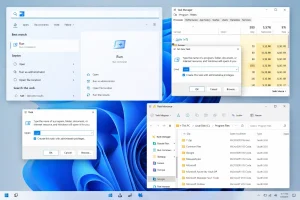
When desktop icons vanish on Windows, it doesn’t mean the programs are gone. Windows provides several built-in, quick-access methods that let you launch your applications instantly.
These methods ensure you stay productive even if your desktop isn’t showing any shortcuts. Let’s explore the most effective options step by step.
Can You Use the Start Menu or Search Bar?
Yes, the Start Menu and Windows Search are the fastest and most user-friendly methods to open a program when icons are missing.
Step-by-step to open a program using the Start Menu or Search bar:
- Press the Windows key on your keyboard. This brings up the Start Menu even if desktop icons are hidden.
- Start typing the program name (e.g., Notepad, Chrome, Word) immediately. Windows will search as you type.
- Look at the search results that appear on the left side of the menu.
- Click the application name or press Enter to launch it.
- If needed, you can also click All apps to scroll through an alphabetical list of every installed program.
This method works regardless of whether icons are visible, and it’s ideal for frequently used software.
What’s the Run Command Method (Shell:appsfolder)?
The Run dialog is a powerful Windows utility that allows you to open any known application directly. One of its hidden features is the shell:appsfolder command, which opens a special folder containing all apps.
Step-by-step to use the Run command and shell:appsfolder:
- Press Win + R on your keyboard to open the Run dialog box.
- Type shell:appsfolder exactly as shown.
- Press Enter or click OK.
- A window will appear showing all installed applications, including Windows Store apps.
- Scroll through the window to locate the program you want, then double-click to open it.
Alternatively, in the same Run dialog:
- You can also type the name of the app’s executable file (e.g., notepad, calc, mspaint) and press Enter.
- For example, typing calc and hitting Enter opens the Calculator.
This method is especially useful if your Start Menu is not responding or you prefer a quick direct approach.
How Can Task Manager Help You Open a Program?
Task Manager is more than just a tool for closing unresponsive applications. It also includes a command option to open programs, which is perfect when your desktop and Start Menu are not responding.
Step-by-step to open a program using Task Manager:
- Press Ctrl + Shift + Esc to open Task Manager directly.
- If it opens in compact mode, click More details at the bottom.
- Click on the File menu in the top-left corner.
- Select Run new task from the dropdown.
- A dialog box will appear. Type the name of the application (e.g., explorer, cmd, chrome, or any other executable).
- To run the program with administrator privileges, check the box that says “Create this task with administrative privileges”.
- Click OK to launch the program.
This method is a reliable workaround when system responsiveness is low or other launch methods aren’t working.
Can File Explorer Lead You to the Executable?
Absolutely. File Explorer allows you to manually locate the executable file of any program installed on your system, even when the desktop and Start Menu aren’t functional.
Step-by-step to launch a program using File Explorer:
- Press Win + E to open File Explorer.
- Navigate to either of the following folders depending on your system:
- C:\Program Files – for most 64-bit programs.
- C:\Program Files (x86) – for 32-bit programs on 64-bit systems.
- Find the folder for the application you want to open (e.g., Google, Microsoft Office, Adobe).
- Inside that folder, look for a file ending in .exe. This is the program’s executable file (e.g., chrome.exe, winword.exe).
- Double-click the .exe file to launch the application.
- If the app requires admin access, right-click the .exe file and select Run as administrator.
You can also enable file extensions if you’re unsure what .exe files look like:
- Click the View tab in File Explorer.
- Choose Show > File name extensions.
This method is especially useful when other launch methods fail or if you’re trying to open less common programs.
All of the above methods are built into Windows and work independently of desktop shortcuts. Whether you prefer searching, using Run, or browsing manually, these options give you full access to your installed applications and keep your workflow uninterrupted.
How Can You Launch Programs on Mac OS Without Using the Desktop?

Even if your macOS desktop appears blank or unresponsive, there are multiple built-in methods to access and launch your applications without needing any desktop icons. macOS is designed to keep core system functions accessible, so even if the Finder or Dock fails temporarily, you can still open essential apps using keyboard shortcuts and system folders.
Here’s how to quickly launch programs without relying on desktop icons:
- Use Spotlight Search:
- Press Command + Space to open Spotlight.
- Start typing the name of the app you want to open (e.g., Safari, Pages).
- Select the application from the list and press Return to launch it.
- Access Launchpad:
- Click the Launchpad icon in the Dock or use a three-finger pinch gesture on your trackpad.
- Browse through or search for the app and click it to open.
- Open Finder Applications Folder:
- Press Command + N to open a new Finder window.
- Click Applications from the sidebar.
- Double-click any app to open it.
These quick-access methods ensure you can continue working even when your desktop isn’t visible. macOS offers reliable alternatives that keep your applications within easy reach.
Which Methods Work Best on Linux When Icons Are Missing?
Linux systems vary by desktop environment, but they all provide alternative ways to open programs without desktop icons. Most Linux distributions include an application menu that acts as a central launcher.
Whether it is GNOME Activities, KDE Application Launcher, or XFCE Applications Menu, users can browse or search installed software easily.
File managers such as Nautilus, Dolphin, or Thunar also allow users to navigate application directories. Graphical applications are often represented by desktop files that can be opened directly. Executables located in system folders can also be launched from the file manager if permissions allow.
Terminal access is another reliable method. By opening the terminal and typing the program name, many applications can be launched instantly.
This method bypasses graphical interfaces and works even when desktop environments fail to load properly. Linux users benefit from having multiple flexible access points that ensure applications remain available regardless of desktop icon visibility.
How Can You Troubleshoot If Programs Still Don’t Open?

When applications refuse to open even after using alternative methods, deeper troubleshooting may be necessary. Identifying the root cause helps restore normal system behavior.
What if the Search Function Fails in Windows?
If Windows Search does not return results, the search service may not be running or the index may be corrupted. Checking the Windows Search service through system services ensures it is active. A disabled service prevents search results from appearing, even when programs are installed correctly.
How Can You Restart Windows Explorer or Macos Finder?
Restarting the graphical shell often resolves missing icons and unresponsive interfaces. On Windows, restarting Explorer through Task Manager reloads the desktop and taskbar. On macOS, restarting Finder refreshes the user interface and restores access to system elements. This simple step frequently fixes temporary display issues.
Is Rebuilding the Search Index a Reliable Fix?
Rebuilding the search index can restore functionality when search tools fail. Windows allows users to rebuild the index through system settings, while macOS offers Spotlight reindexing through privacy settings. This process ensures applications are properly indexed and searchable.
When Should You Use Administrative Tools?
Administrative tools become necessary when permission issues or system restrictions block program access. Running applications with elevated privileges can bypass certain limitations. These tools should be used carefully, but they are essential when standard access methods fail.
Can You Prevent Desktop Icon Issues from Happening Again?
Preventing desktop icon issues involves maintaining system stability and avoiding configuration conflicts. Regular system updates help ensure that graphical shells and search services function correctly.
Keeping malware protection enabled reduces the risk of unwanted configuration changes that hide icons.
Users should also avoid force shutting down systems during startup, as incomplete loading can damage user profiles. In managed environments, reviewing system policies ensures icons are not intentionally hidden.
Creating alternative access habits such as using Start Menu or Spotlight reduces reliance on desktop shortcuts.
Backing up user profiles and maintaining disk health also play a role in prevention.
While desktop icons are convenient, understanding fallback access methods ensures that productivity remains uninterrupted even if visual elements fail temporarily.
What Are the Best Alternative Ways to Access Applications?

Beyond standard launchers, there are additional ways to access applications when icons are unavailable. Creating custom shortcuts in accessible folders provides quick access without relying on the desktop. Pinning applications to taskbars or docks ensures they remain reachable at all times.
Using centralized application folders allows users to maintain organized access points. Shell based launch commands and system menus provide reliable alternatives that function independently of desktop displays.
For advanced users, scripting repetitive tasks ensures critical applications open automatically when needed.
These alternative methods emphasize flexibility and resilience. By diversifying access points, users reduce dependency on any single interface element and maintain control over how programs are launched.
Conclusion
Missing desktop icons can be alarming, but they rarely indicate lost programs or serious system damage. Modern operating systems are designed with multiple access layers that allow users to open applications even when visual shortcuts disappear.
Understanding how do you open a program when there are no icons on the desktop empowers users to act quickly and confidently. From search tools and file explorers to command based options, each platform provides reliable solutions.
Learning these methods not only resolves immediate issues but also builds long term confidence in navigating system problems. With the right knowledge, users can continue working efficiently and prevent small display issues from becoming major disruptions.
FAQs
How do you open a program when there are no icons on the desktop?
You can use the Start Menu or system search to launch programs directly. File Explorer and command tools also provide reliable access.
Are my programs deleted if desktop icons disappear?
No, the programs are still installed on the system. The issue usually affects only how shortcuts are displayed.
Can Task Manager really open applications?
Yes, Task Manager includes a Run new task option that allows you to start programs manually.
Why does restarting Explorer fix missing icons?
Restarting Explorer reloads the graphical shell that displays desktop icons and taskbars.
Is Spotlight Search reliable on macOS?
Spotlight is one of the most reliable ways to open apps because it searches indexed application folders.
What should Linux users do if the desktop is blank?
They can use application menus or the terminal to launch programs without desktop shortcuts.
Should I worry if icons disappear frequently?
Frequent issues may indicate profile or system configuration problems that require deeper investigation.